Choose what your users see
Which Leads tabs, parts of the Leads screen and extra screens your users get, and how long a screen stays open.
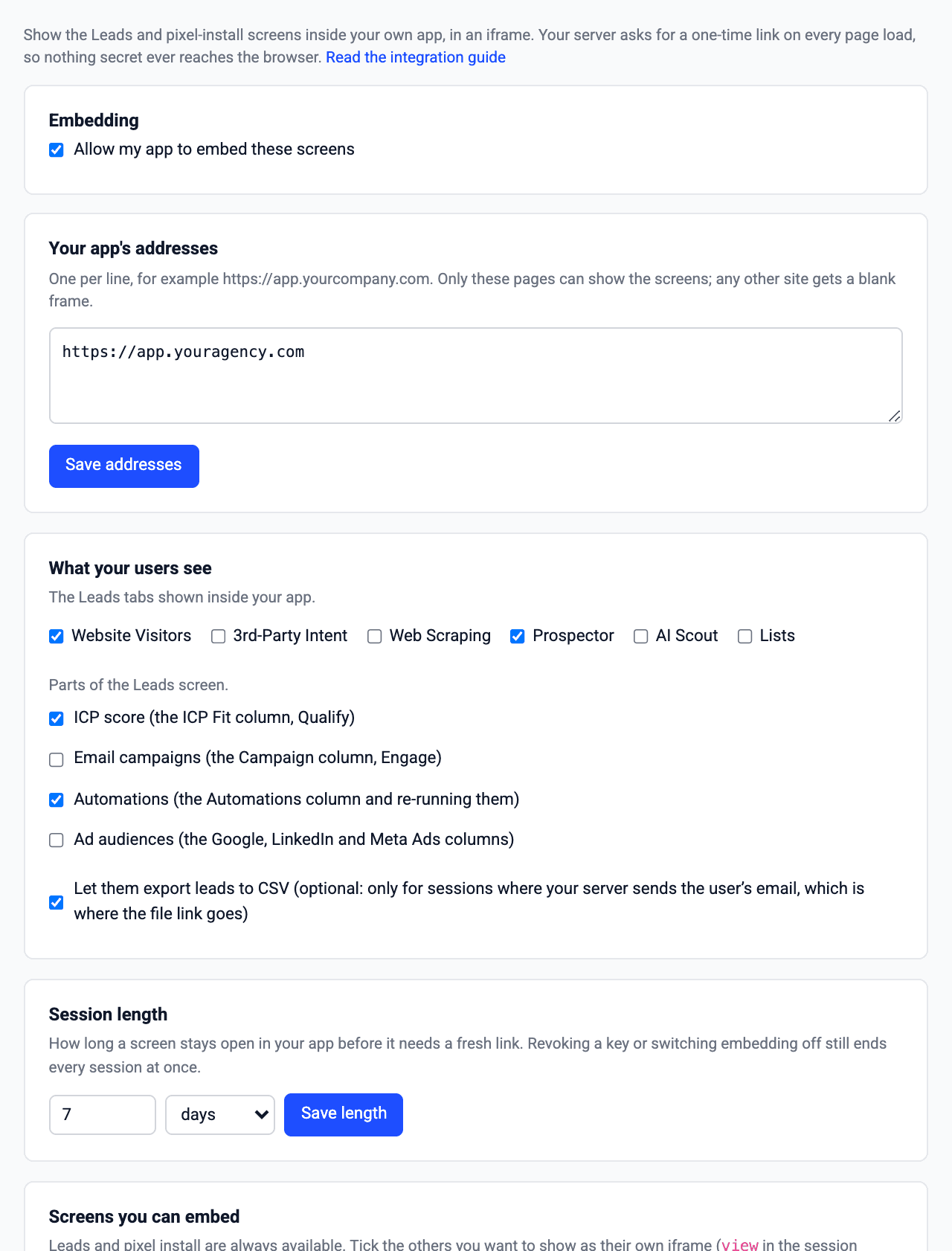
You decide what your users see, once for your whole account, in Account settings → White label → Embed in your app. Every new session follows these settings; change one and the next link your server asks for uses it.
Try the switches
The same switches as in your dashboard. Change one and the preview opens a new session with it, exactly as your users would see it.
No domain yet, so the field is open. Type any domain and click Verify: the check fails and the screen explains what to fix.
The settings
| Setting | What it changes | Default |
|---|---|---|
| Leads tabs (products): Website Visitors, 3rd-Party Intent, Web Scraping, Prospector, AI Scout, Lists | The tabs at the top of the Leads screen. At least one. | Website Visitors |
| ICP score | The ICP Fit column and the Qualify screen | On |
| Email campaigns | The Campaign column and the Email campaigns screen | On |
| Automations | The Automations column, re-running them, and the Automations screen | On |
| Ad audiences | The Google, LinkedIn and Meta Ads columns | On |
| CSV export | The Export button, only in sessions where your server sends user.email (the file link is emailed there) | On |
| Screens you can embed: Automations, Integrations, Website settings, Qualify, Email campaigns | Extra screens, each opened with its own view | Off (Leads and Install are always on) |
| Session length | How long a screen stays open before it needs a fresh link: 1 minute to 1 year | 1 week |
A screen whose part is switched off cannot be opened either: switch off Email campaigns and a session with view: "engage" is refused.
Change them in your dashboard
Open Account settings → White label → Embed in your app.
Under What your users see, tick the Leads tabs and the parts of the Leads screen they get.
Under Screens you can embed, tick the extra screens you will put behind your own menu items.
Set the Session length and click Save length. Revoking a key or switching embedding off still ends every session at once.
One menu item per screen
Each screen is its own iframe behind your own menu item, opened with its view (see Open a screen):
| Your menu item | view |
|---|---|
| Website visitors | auto (install until the pixel works, then leads) or leads |
| Install tracking | install |
| Automations | automations |
| Integrations | integrations |
| Qualify | qualify |
| Email campaigns | engage |
| Website settings | settings |