Your domain and keys
Put the screens on your own domain, switch embedding on and create the two keys your server uses.
Two things in your Happierleads dashboard, once, before your first client. Then add the keys to your server's environment.
1. Put the screens on your domain
Your clients must never see happierleads.com. The White label wizard puts everything on two addresses of yours: one for the screens and one for the API.
Choose your two addresses
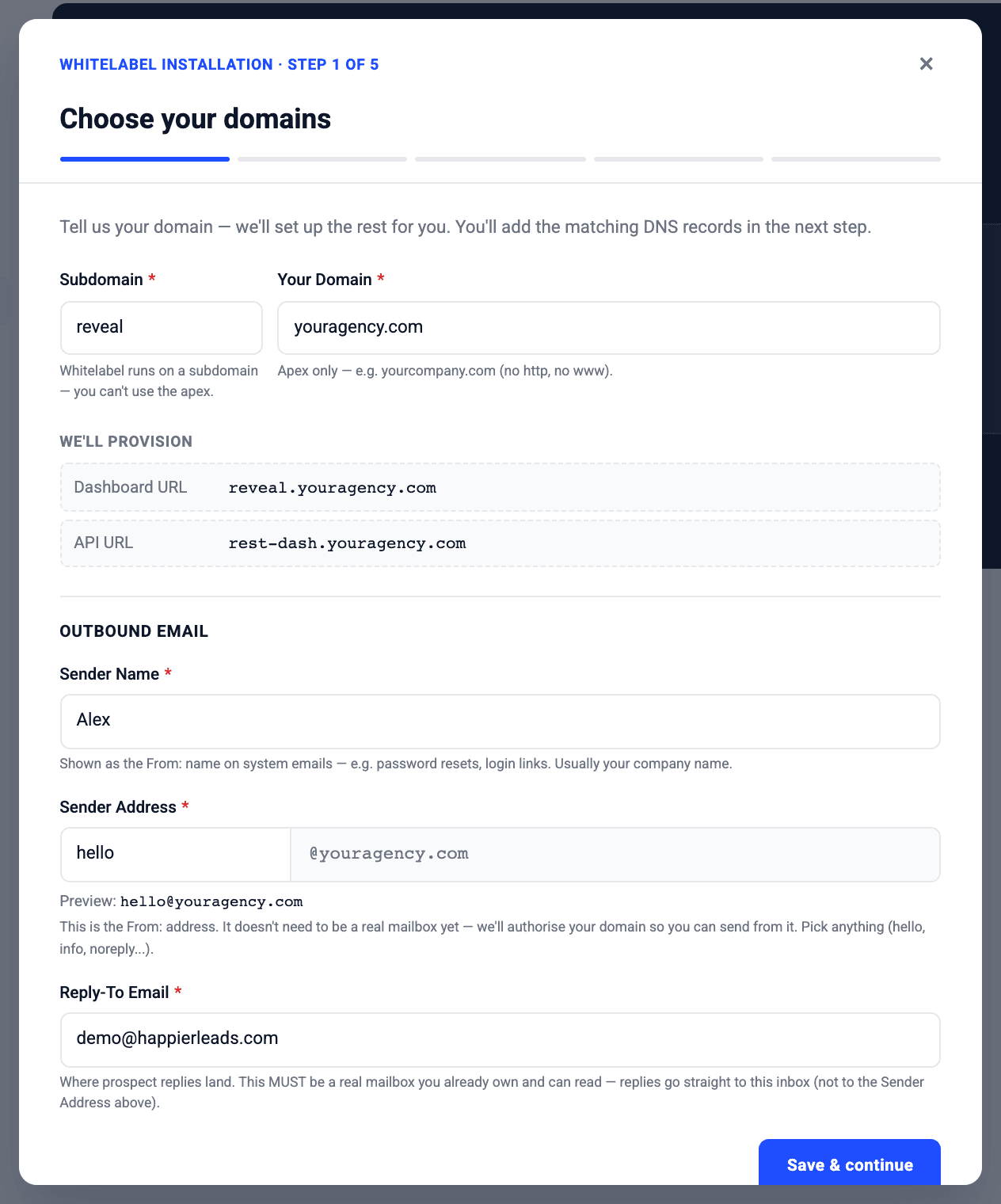
Open Account settings → White label and click Start setup. Type a subdomain (for example reveal) and your domain. The wizard sets up:
reveal.youragency.example: the screens (the dashboard, or the embedded screens)rest-dash.youragency.example: the API
Fill in the sender details for system emails and click Save & continue.
Add the DNS records
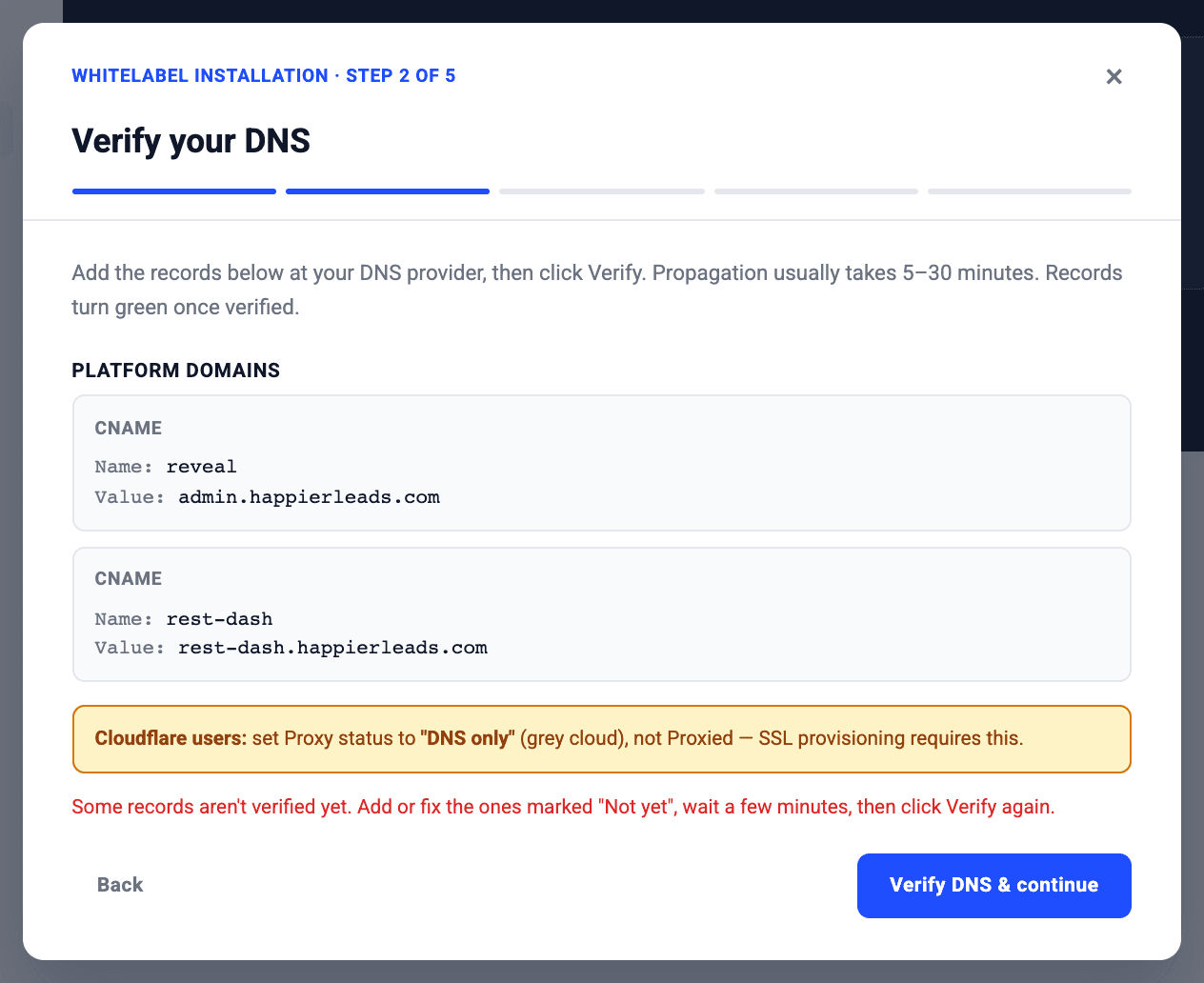
The wizard shows two CNAME records. Add them at your DNS provider exactly as shown.
On Cloudflare
Set Proxy status to DNS only (grey cloud). Proxied records stop the SSL certificate from being issued.
Verify
Click Verify DNS & continue, usually 5 to 30 minutes after adding the records. Records turn green once they are found. If one says Not yet, fix it, wait a few minutes and click Verify again.
Once verified you can call the API on https://rest-dash.youragency.example instead of https://rest-admin.happierleads.com: same endpoints, same keys.
2. Switch embedding on and create your keys
Allow your app to embed the screens
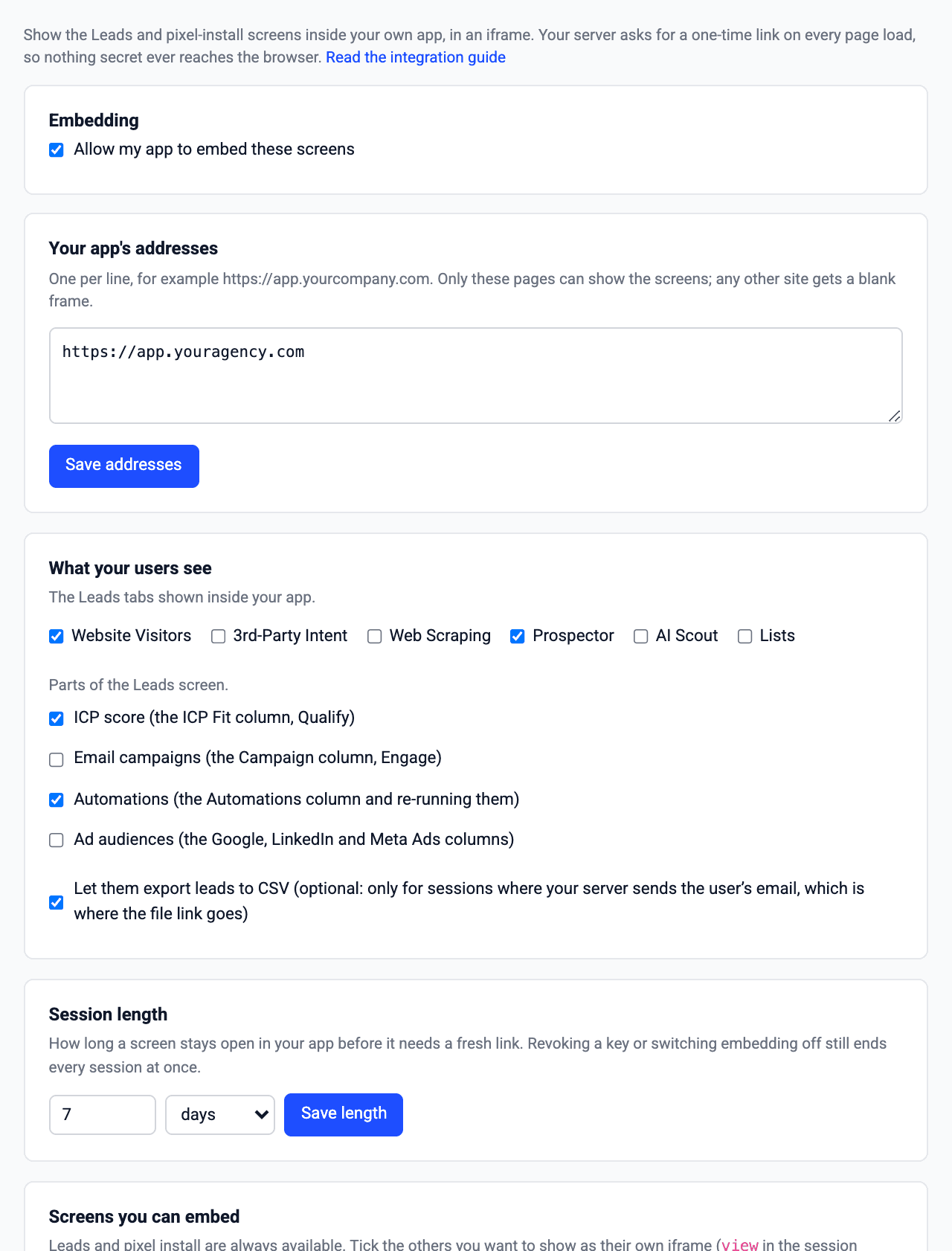
Open Account settings → White label → Embed in your app and tick Allow my app to embed these screens.
Add your app's addresses
Add the address of every environment that shows the iframe (production, staging, local), one per line, for example https://app.youragency.example, and click Save addresses. Any other site gets a blank frame.
Choose what your users see
- Leads tabs: Website Visitors, 3rd-Party Intent, Web Scraping, Prospector, AI Scout, Lists.
- Parts of the Leads screen: ICP score, Email campaigns, Automations, Ad audiences.
- Extra screens you can embed as their own iframe: Automations, Integrations, Website settings, Qualify, Email campaigns. Leads and pixel install are always available.
- CSV export (optional): only for sessions where your server sends the user's email; the file link is emailed there.
Set the session length
How long a screen stays open before it needs a fresh link: 1 week by default, from 1 minute to 1 year. Revoking a key or switching embedding off still ends every session at once.
Create the embed key
Under Server keys click Create key. It is shown once: store it on your server as HL_EMBED_KEY. You can have up to 5 active keys, so you can rotate without downtime.
Create the master key
Open Account settings → API Keys, create a master key and store it as HL_MASTER_KEY. See Authentication for rotating keys.
3. Add the keys to your server
HL_API_BASE=https://rest-admin.happierleads.com   # or https://rest-dash.youragency.example once DNS is verified
HL_MASTER_KEY=master-priv-…
HL_EMBED_KEY=hle_…
Add the three names with empty values to .env.example, and to every environment's secrets.
Next: choose what your users see.