Your domain, brand and assets
The White label wizard: two addresses of yours, the DNS records, your brand and your logos.
Once, in your Happierleads dashboard: Account settings → White label → Start setup. The wizard has five steps.
Steps 1 and 2: your domain
Your clients must never see happierleads.com. The White label wizard puts everything on two addresses of yours: one for the screens and one for the API.
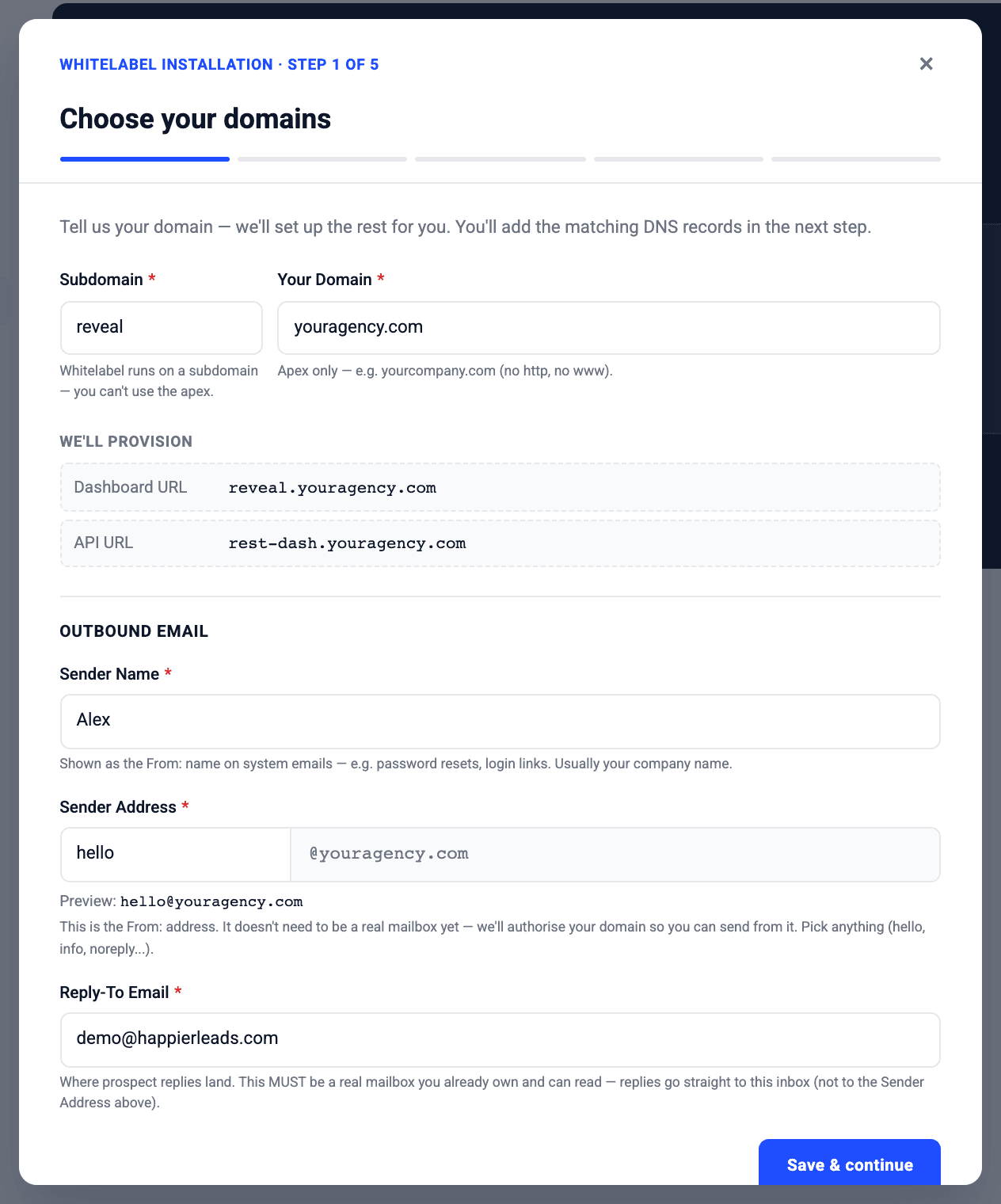
Choose your two addresses
Open Account settings → White label and click Start setup. Type a subdomain (for example reveal) and your domain. The wizard sets up:
reveal.youragency.example: the screens (the dashboard, or the embedded screens)rest-dash.youragency.example: the API
Fill in the sender details for system emails and click Save & continue.
Add the DNS records
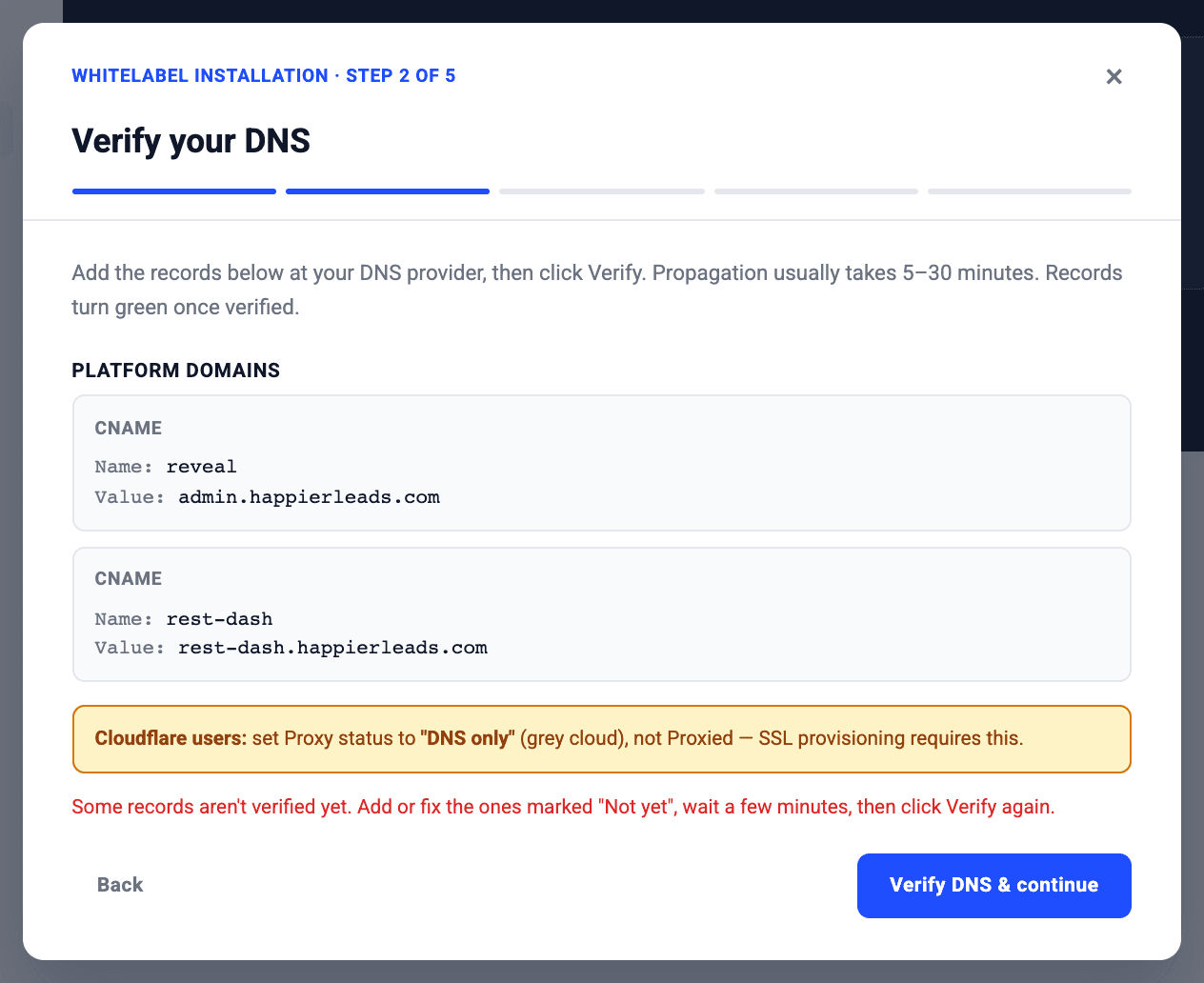
The wizard shows two CNAME records. Add them at your DNS provider exactly as shown.
On Cloudflare
Set Proxy status to DNS only (grey cloud). Proxied records stop the SSL certificate from being issued.
Verify
Click Verify DNS & continue, usually 5 to 30 minutes after adding the records. Records turn green once they are found. If one says Not yet, fix it, wait a few minutes and click Verify again.
Once verified you can call the API on https://rest-dash.youragency.example instead of https://rest-admin.happierleads.com: same endpoints, same keys.
Step 3: your brand
| Field | Used for |
|---|---|
| Company name | Everywhere our name would appear |
| Sender name and sender email | Invites, password resets and alerts your clients receive |
| Bounce address (optional) | Where undeliverable emails are reported |
| Brand color | Buttons and highlights |
Step 4: your brand assets
Upload your logo (light background), the header logo (dark background), the sign-in hero image, the favicon and the logo for the automations page. Anything you skip can be added later in the same place.
Step 5: you're live
Your clients can now sign in at reveal.youragency.example, and your server can call the API on rest-dash.youragency.example.
Next: add your first client.